Menu itemplan
Explanation of the plan screen in the menu.
SPLIT
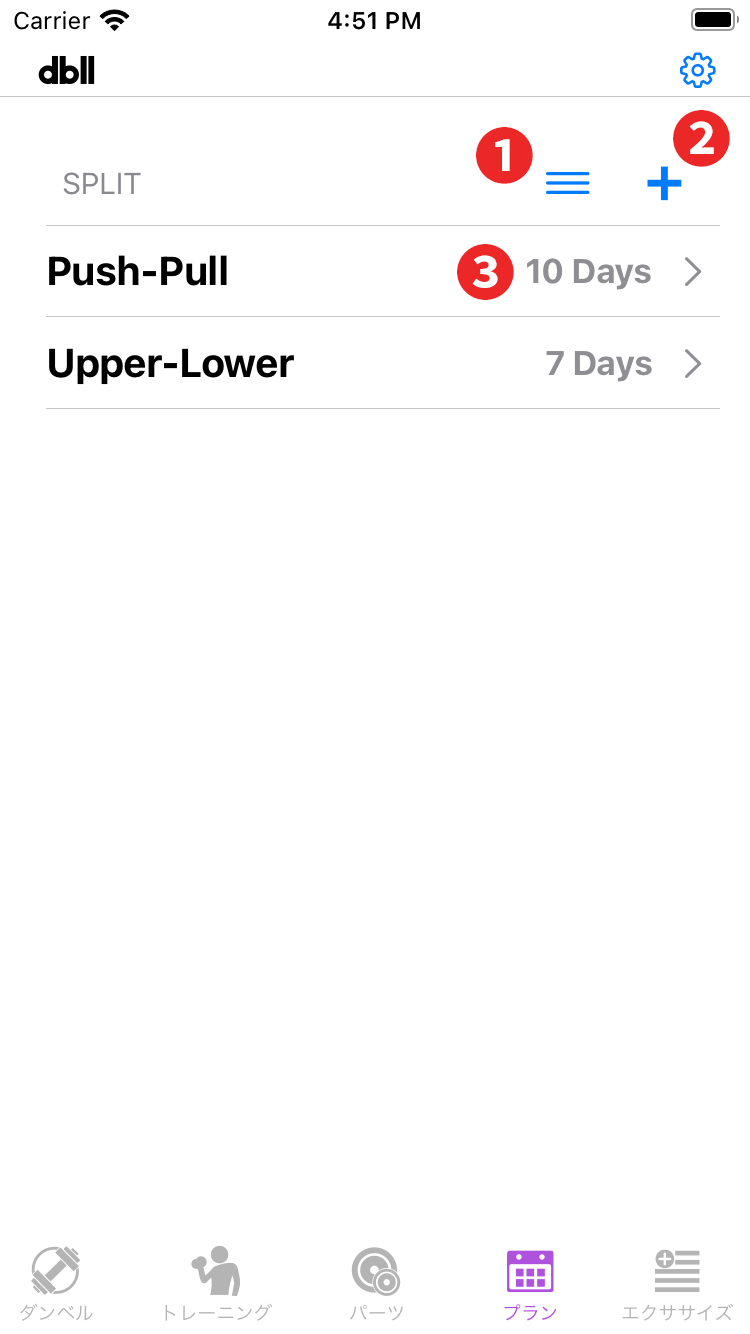
- Edit mode button: Tap to go to edit mode to rearrange or delete the split. This function is not available when there is only one list item. ※See ”In edit mode”. Edit mode
- Add button: Add a split.
- Split list: The name of the split and the number of workout days will be displayed. Tap an item on the list to go to the workout screen for that split. WORKOUTS
Deleting split
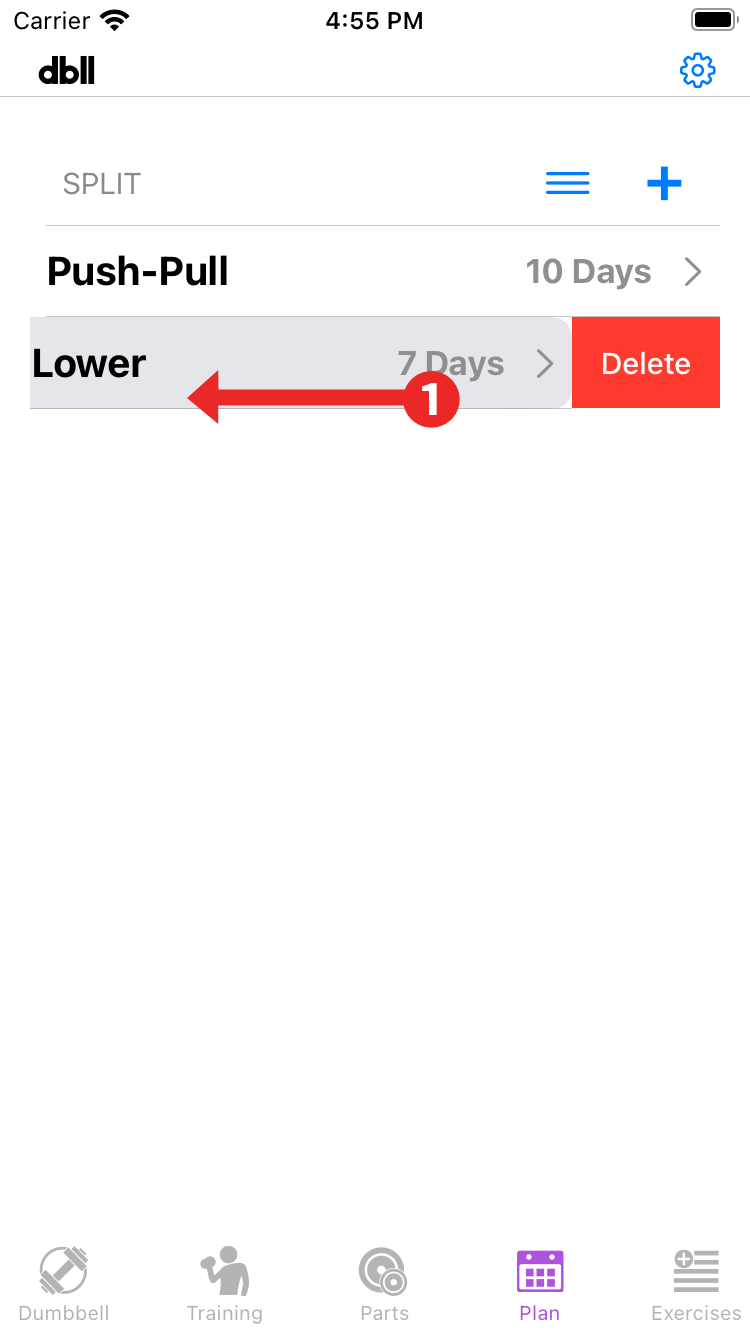
- To delete each part, swipe the list item to the left and tap the Delete button.
In edit mode
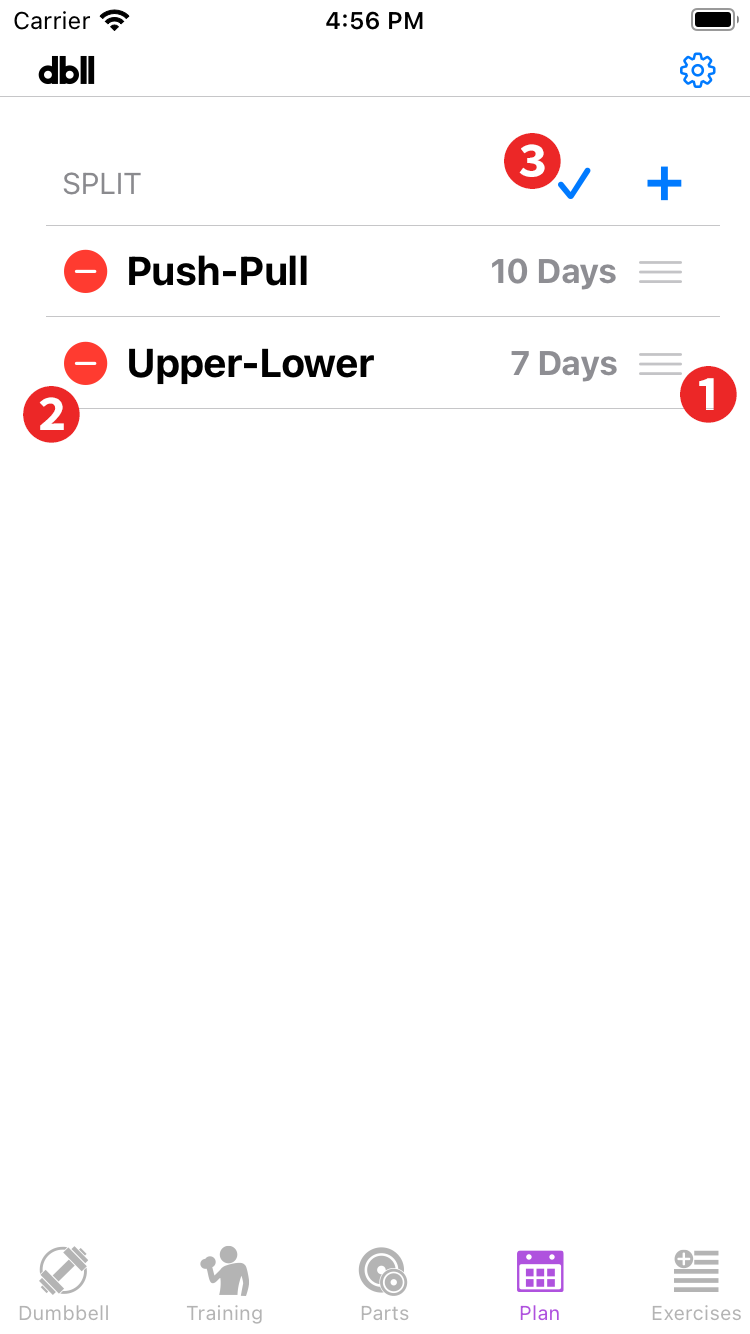
- Items can be rearranged by dragging.
- When you tap it, a delete button will appear, and you can tap it to delete the item.
- Tap to exit edit mode.
WORKOUTS
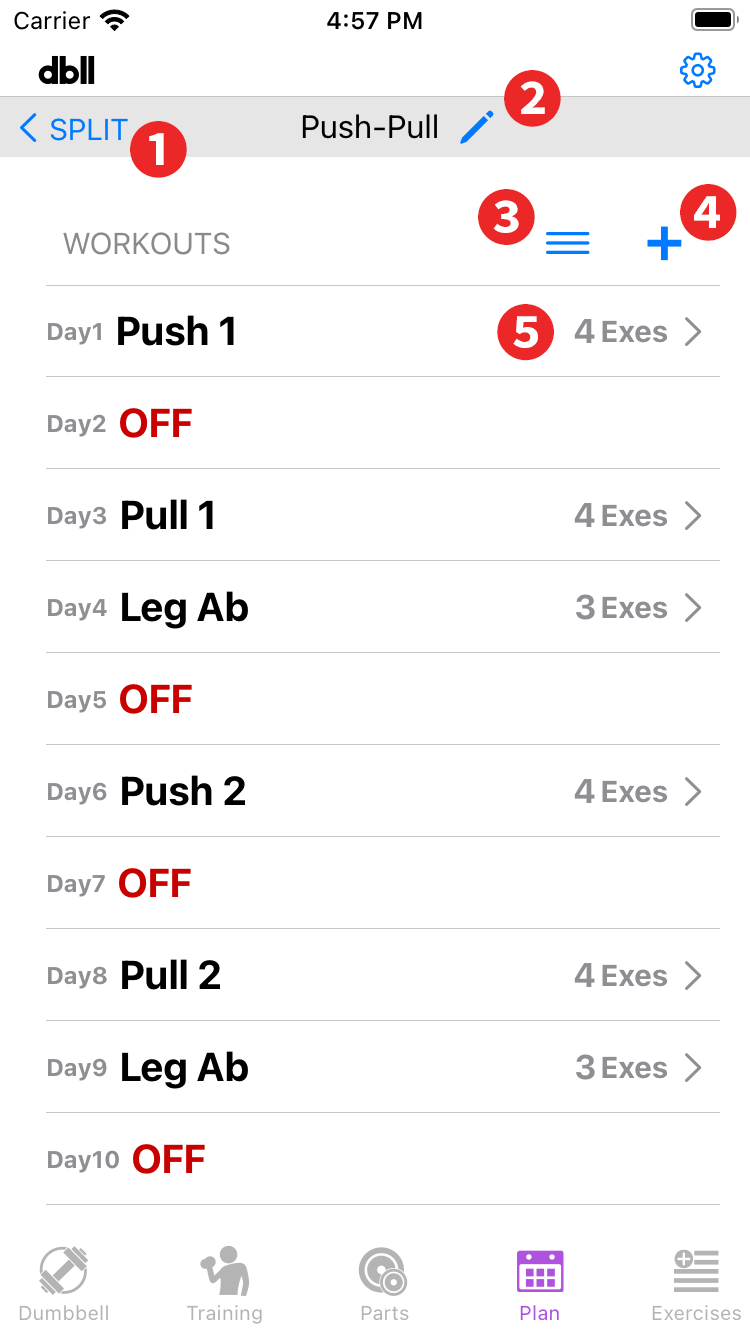
- SPLIT: Back to split list.
- Edit split name: You can change the name of the selected split.
- Edit mode button: Tap to go to edit mode. The "Rearrange,” "Delete," and "Exit edit mode" in the edit mode are common to the split.
- Add button: Add a workout to the currently selected split; in dbll, a workout is a set (day) of several exercises. The number of days (for the number of items in the list) added to the workout and off days created here is one cycle of the training schedule. In the image example, it is 10 days. Off day
- Workout list: The day, workout name, and number of exercises are displayed. The order in this list determines the order of your workouts. Tap an item in the list to move to the exercises screen for that workout. EXERCISES
Press and hold an item in the list to copy the workout with your exercise information.
Off day
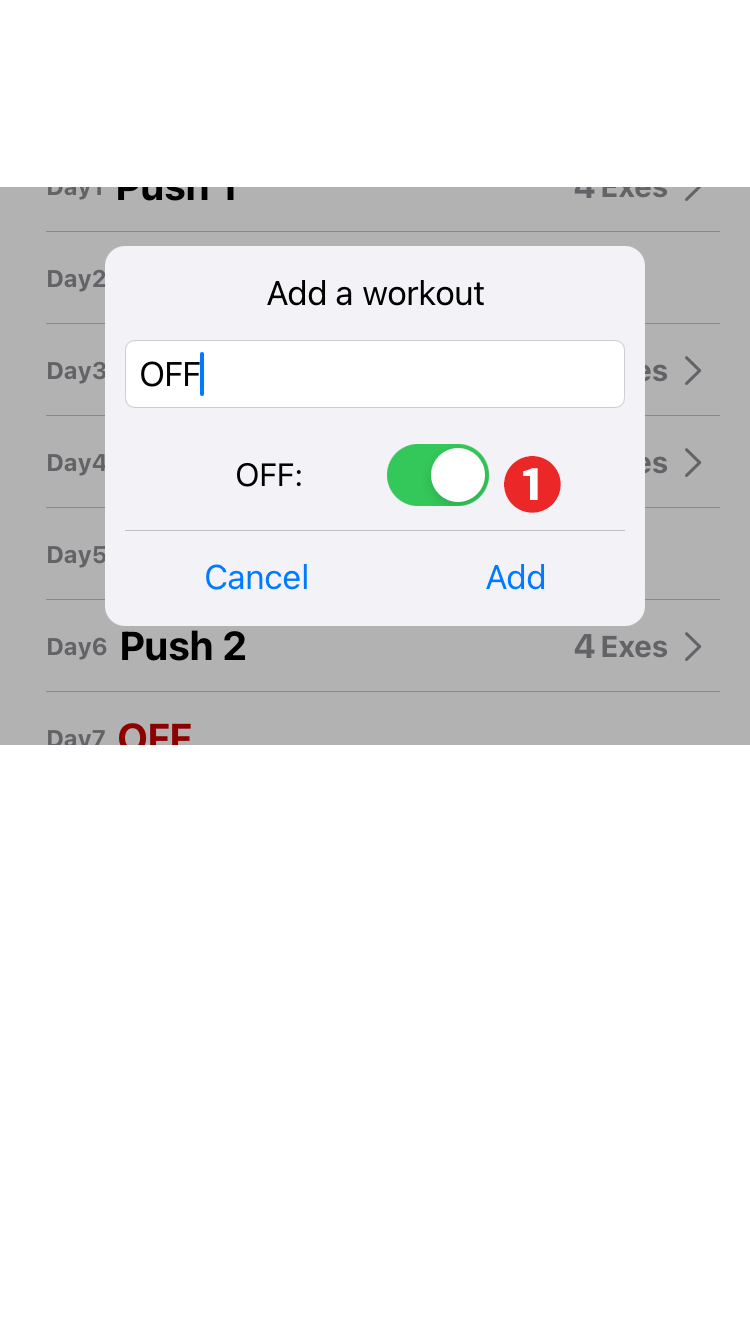
- If turned on, that workout will be set as a no-exercise day. You will not be able to change the name, so if you need to change it, delete and recreate it and reorder it.
EXERCISES
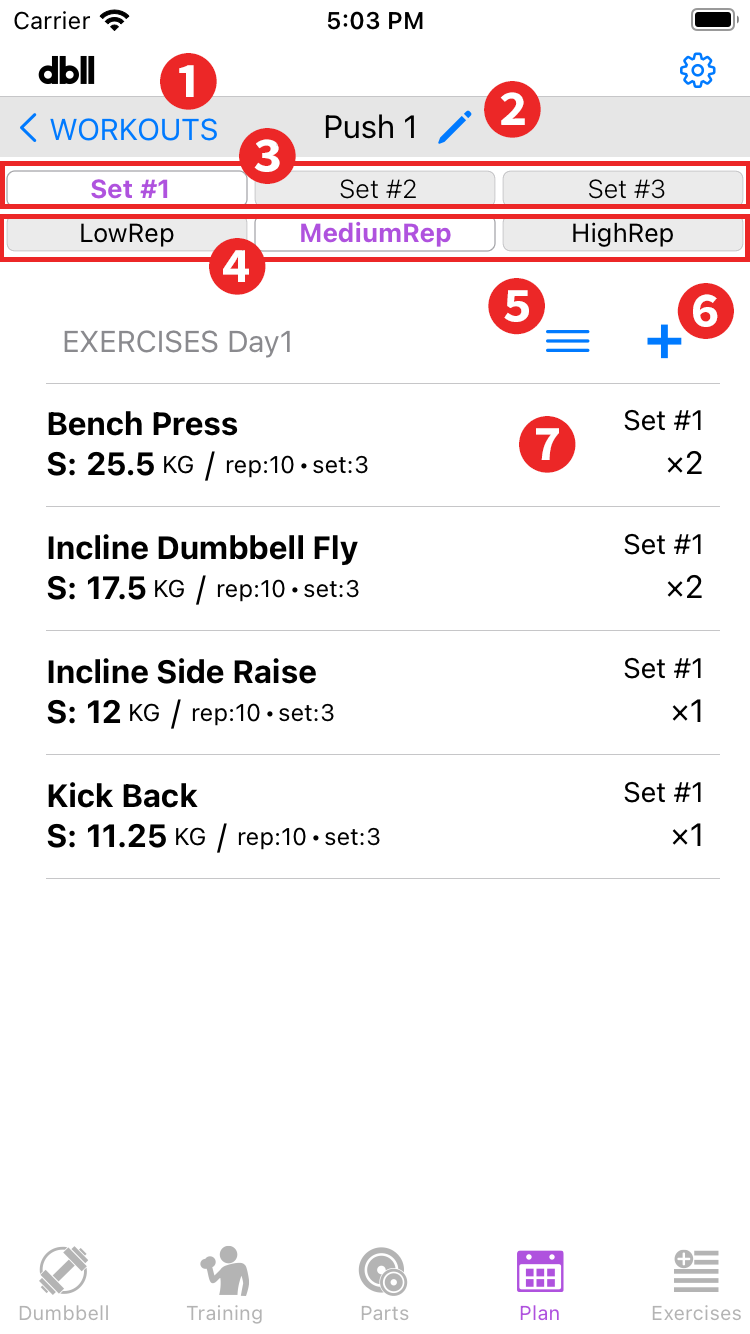
- WORKOUTS: Back to workout list.
- Edit workout name: You can change the name of the selected workout.
- Parts set switching: You can use it by purchasing "3 parts sets" with in-app purchase. By switching, the information in the "Exercise list" changes according to the selected parts list.
- Rep mode switching: By switching, the information in the "Exercise list" changes according to the selected rep mode.
- Edit mode button: Tap to go to edit mode. The "Rearrange,” "Delete," and "Exit edit mode" in the edit mode are common to the split.
- Add button: Tap to go to the screen to add exercise to the currently selected workout. Add exercise
- Exercise list: It displays the exercise name, rep mode, weight, number of reps, number of sets, part set mode, and number of dumbbells used. The order of this list is directly the order of the day's exercises. Tap a list item to edit "Parts set," "Rep mode," and "Adjust set.
Deleting an exercise item here will delete it from the currently selected workout. It does not delete the exercises in the "Exercises"(menu item) section.
Add exercise
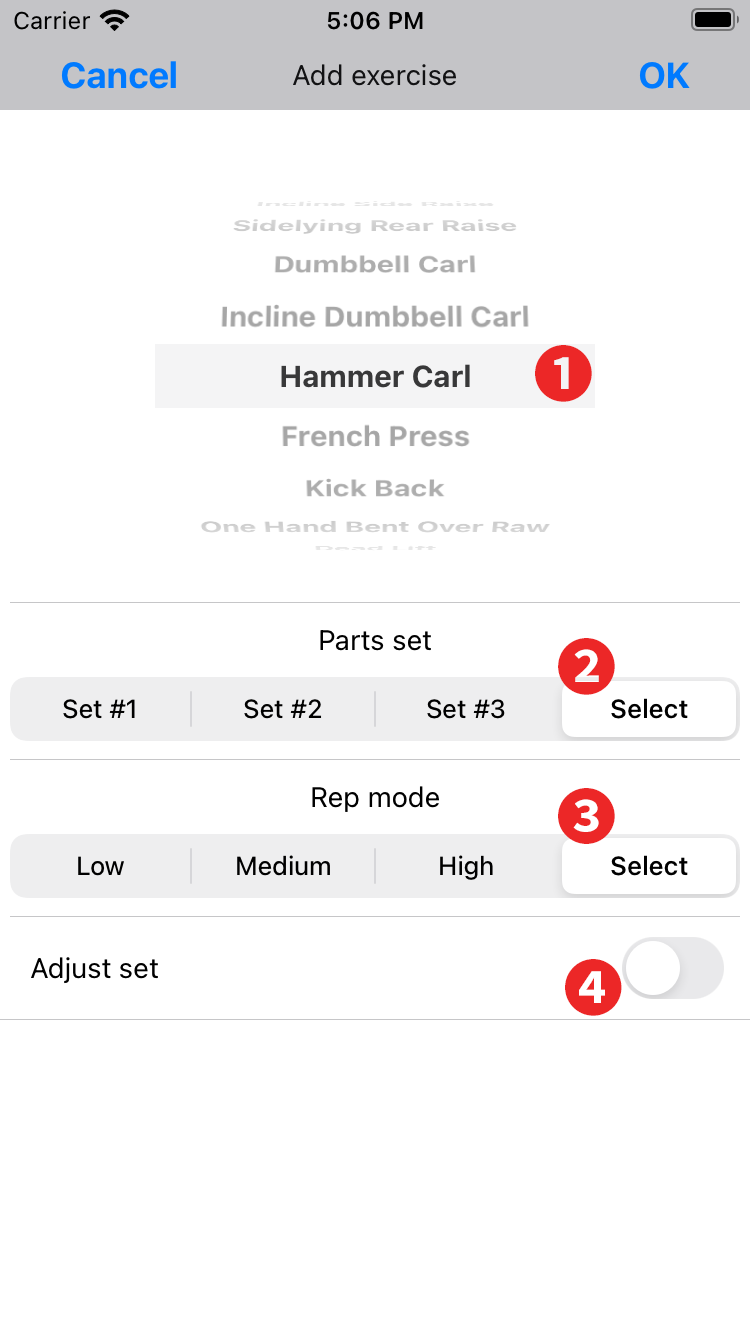
- Wheel selection: Select from the exercises registered in the "Exercises"(menu item) section.
- Parts set: You can use it by purchasing "3 parts sets" with in-app purchase. If you are fixing a parts set to be used in this exercise, select that set. "Select" is selected when the parts set is not fixed and is switched each time using the "Parts set switching” on the training screen.
- Rep mode: If you are fixing a set of parts to be used in this exercise, select that set. "Select" is selected when the rep mode is not fixed and is switched each time using the “Rep mode switching” on the training screen. The setting here has priority over the rep cycle setting of "Schedule" in "App settings".
- Set adjustment: Used to change the number of sets. Turn it on to set the desired number of sets. This setting is only valid for the exercise being edited for the selected workout.