
Menu itemparts
Explanation of the parts screen in the menu.
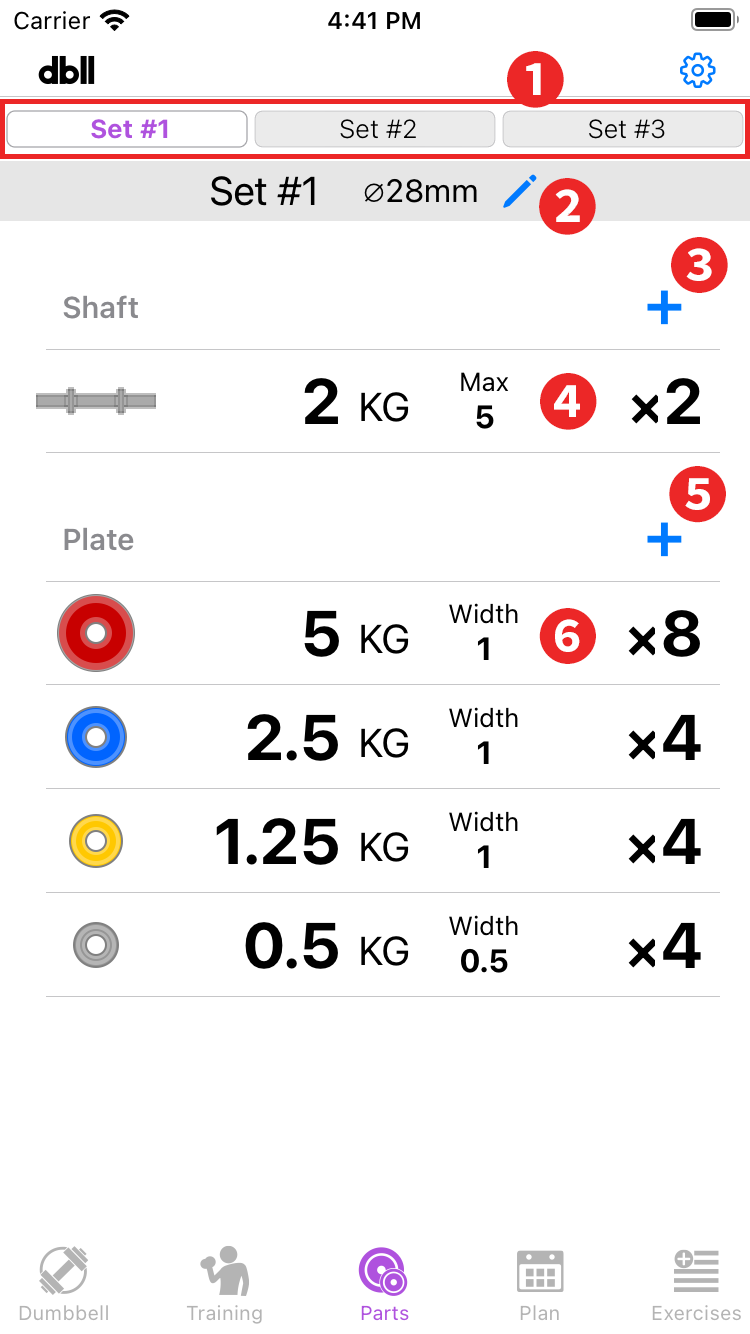
- Parts set switching: You can use it by purchasing "3 parts sets" with in-app purchase.
- Edit Set name, Shaft diameter: Tap to move to the "Edit parts set" screen. Edit parts set
- Add shaft button: Add a shaft. Go to the Add shaft screen. *See Quick start Shaft registration for details.
- Edit Shaft: Opens an edit screen for the tapped shaft, allowing you to change the quantity and max load plates.
- Add plate button: Add a plate. Go to the Add plate screen. *See Quick start Plate registration for details.
- Edit Plate: Opens an edit screen for the tapped plate, allowing you to change the icon, quantity and plate width. The color selected on the icon editing screen can be changed in "Plate color" in "App settings".
Deleting Parts
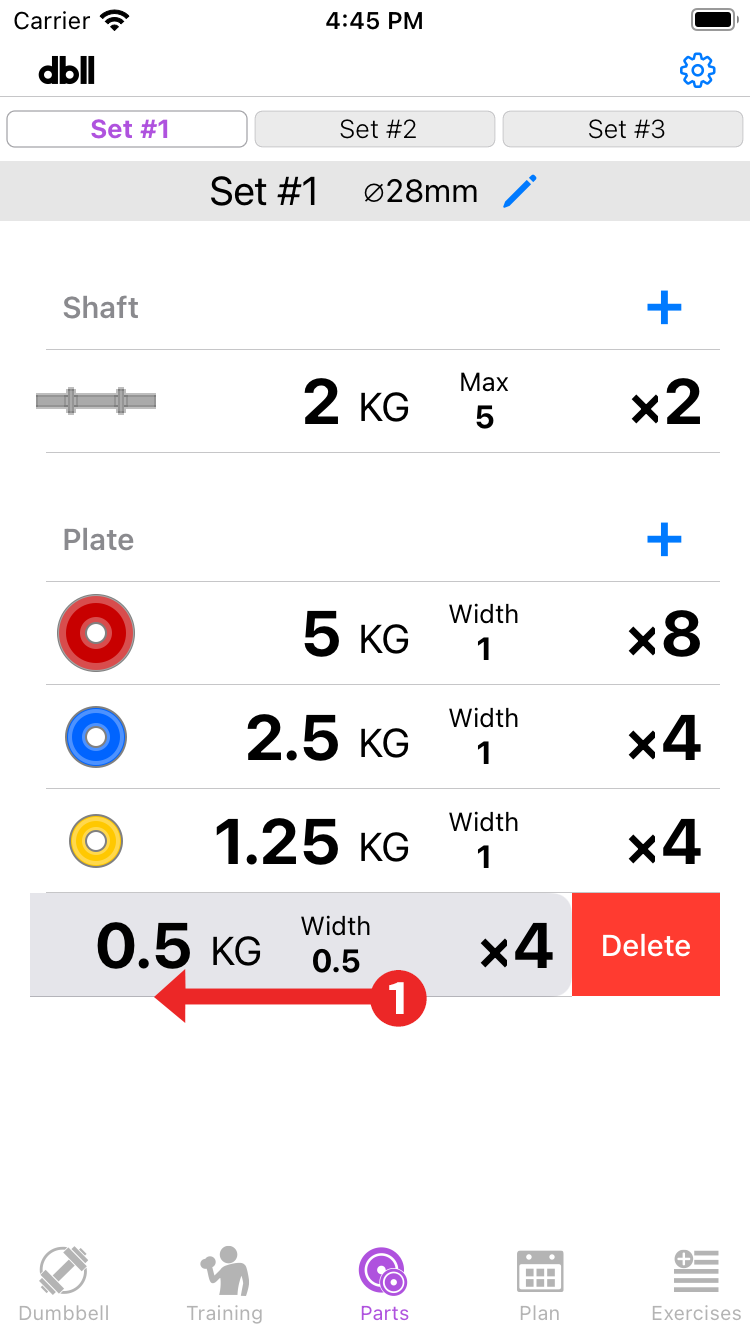
- To delete each part, swipe the list item to the left and tap the Delete button.
Edit parts set
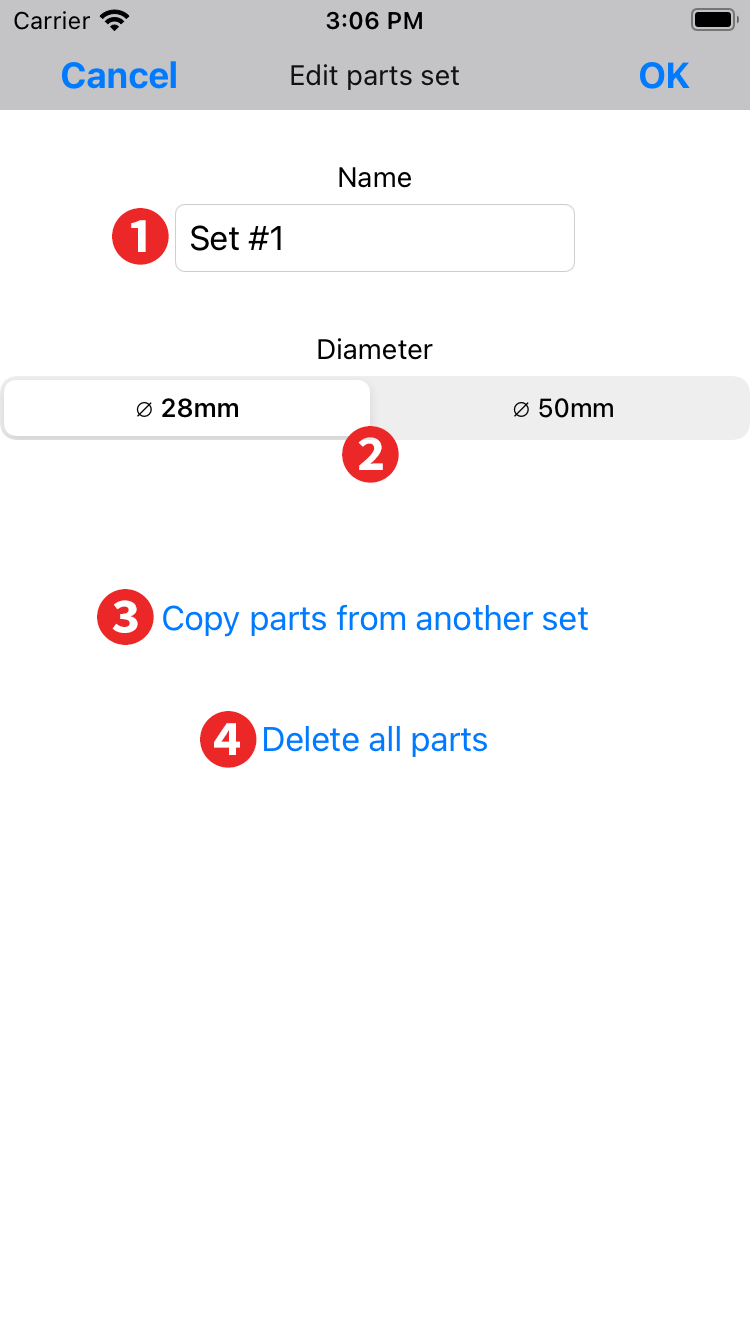
- Change the parts set name.
- Change the shaft diameter.
- Overwrites all parts of the set selected in the menu to the set being edited. If there are parts in the set being edited, they will be deleted.
- Delete all parts of the set being edited.